How to back up your browser bookmarks (Chrome, Edge, Brave, Firefox, Safari)
Export and back up your bookmarks from any browser in a couple of clicks. Where the menu hides, what the bookmarks.html file actually contains, and why an export alone won't save you.
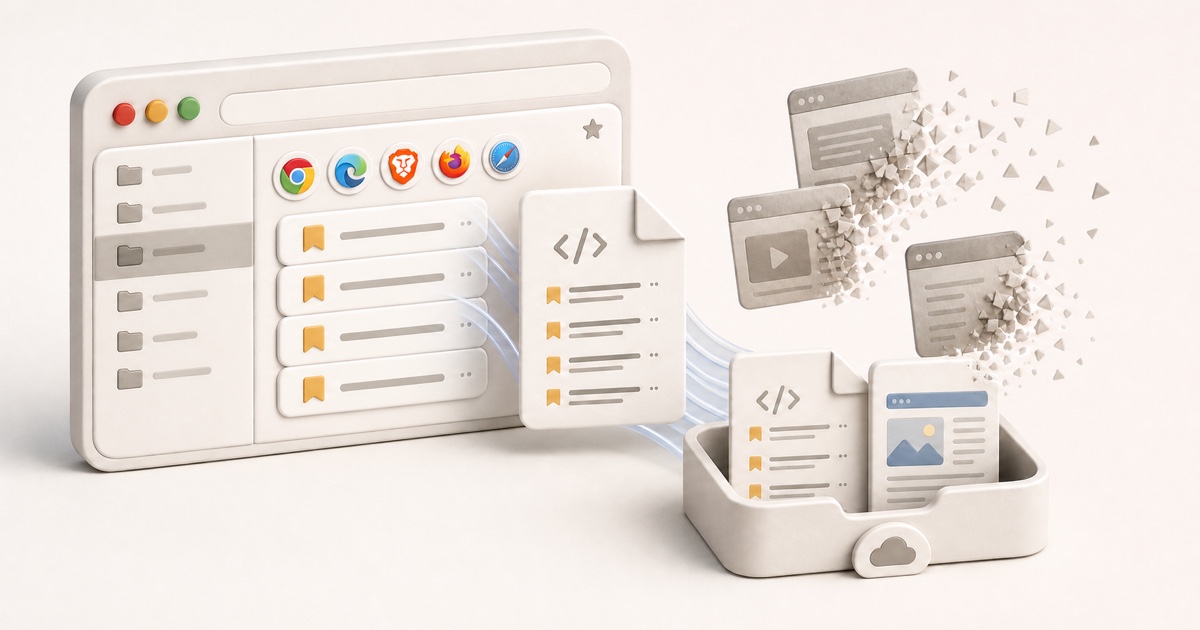
Your bookmarks bar is years of saved links: recipes, docs, that one Stack Overflow answer that fixed everything. Then you reinstall, switch laptops, or a sync glitch wipes the list, and it's all gone. The fix takes about two clicks, but every browser hides the button somewhere different.
Here's exactly how to export and back up your bookmarks from any browser, what the file you get actually contains, and why saving that file is only half the job.
The quick answer: export bookmarks from each browser
Each one produces a standard HTML bookmarks file, so you can move it between browsers later. Here's where the button lives:
- Chrome: Open the Bookmark manager (
Ctrl+Shift+O, orCmd+Option+Bon Mac), click the three-dot menu inside the manager (top right), then Export bookmarks. Or just go tochrome://bookmarks. Chrome suggests a dated filename likebookmarks_6_24_26.html; rename it if you like. - Brave: Same as Chrome, since Brave is built on Chromium. Open the
Bookmark manager (
Ctrl+Shift+O), click the three-dot menu, then Export bookmarks. - Edge: Go to
edge://favorites(or pressCtrl+Shift+Oto open the favorites panel, then click Open favorites page). On that page, click the three-dot menu, then Export favorites. Edge calls bookmarks "favorites," but the file is the same HTML format. - Firefox: Open the Library window (
Ctrl+Shift+O, listed in the menu as Manage bookmarks), click Import and Backup in the toolbar, then Export Bookmarks to HTML. The file is namedbookmarks.htmlby default. - Safari: From the menu bar, choose File → Export Browsing Data to File,
check Bookmarks, and export. Recent Safari saves a
.zip; unzip it to findBookmarks.html. (Older Safari versions used File → Export → Bookmarks.)
Save the file somewhere you actually back up: a cloud drive, not just your Downloads folder. That one file is a complete, portable snapshot of every bookmark and folder you have.
What the bookmarks.html file actually contains
It's worth knowing exactly what you just saved, because it explains the limits. The export is a plain HTML file (a format every browser has used since the Netscape days) that stores:
- Every URL, in its original folder.
- The title of each bookmark as it appeared in your list.
- Your full folder structure, nested exactly as you had it.
- The date each bookmark was added, tucked into an attribute.
That's the whole list. What it does not contain is just as important: there is no copy of the page itself. No article text, no images, no archived version. Each entry is still just a pointer to a live URL on someone else's server.
Firefox has a second backup format
Alongside the HTML export, Firefox keeps automatic .jsonlz4 backups under
Import and Backup → Restore. Those preserve a bit more Firefox-specific
metadata, but they only restore into Firefox. For moving bookmarks to another
browser, the HTML export is the universal one.
Why an export isn't really a backup
Here's the catch that bites people months later. You export your bookmarks, feel safe, and then go to open one and hit a 404. The bookmark survived. The page didn't.
This is link rot, and it's relentless. Pages get deleted, sites shut down, articles move behind paywalls, and URLs silently break. A 2024 Pew Research study found that 38% of webpages that existed in 2013 were gone a decade later, and a quarter of all pages from the previous ten years had already vanished. Your exported file faithfully preserves the address of a building that's already been demolished.
A saved link is only as alive as its destination
An export protects you from losing the list. It does nothing to protect the content. The day the original page goes offline, your backed-up bookmark points at nothing, and the export gives you no way to get it back.
We went deep on this in where your saved posts actually go and what happened when Pocket shut down and deleted everyone's saves. The lesson is the same every time: a reference is not a copy.
Clean up before you back up
A backup is a good moment to prune. Most bookmark lists are full of duplicates from years of re-saving the same pages, plus dead links you'll never miss. You don't have to do this by hand:
Free tools for your exported file
Once you have your bookmarks.html, our free, in-browser tools can tidy it
up before you archive it. Find and remove duplicate
bookmarks (it strips tracking params before
comparing, so near-identical URLs still match), or convert the whole file to
CSV, JSON, Markdown, or OPML so you can open
it in a spreadsheet or your notes app. No signup, nothing leaves your browser.
Browser bookmark export, side by side
| Browser | Where the export lives | Calls them | File you get |
|---|---|---|---|
| Chrome | Bookmark manager → three-dot menu | Bookmarks | HTML file |
| Brave | Bookmark manager → three-dot menu | Bookmarks | HTML file |
| Edge | edge://favorites → three-dot menu | Favorites | HTML file |
| Firefox | Library → Import and Backup | Bookmarks | bookmarks.html |
| Safari | File → Export Browsing Data to File | Bookmarks | .zip (HTML inside) |
Different menus, same idea, and the same blind spot: every one of them backs up the link and leaves the content behind.
How to back up the content, not just the link
If you want a backup that's still there when the original page isn't, you need to capture the page, not just record its address. That means keeping a copy of the title, text, and media at the moment you save, so it no longer depends on the source staying online.
That's the whole idea behind Stashr. Instead of storing a pointer, it saves the actual content into a private library of your own:
- It survives deletion. The source can 404, go private, or shut down. Your copy stays readable.
- It's searchable by what the page was about. Every save is auto-tagged on the way in, so you can find it in plain English instead of scrolling a wall of titles.
- It pulls in more than browser bookmarks. The things you save inside X, Reddit, Instagram, and TikTok land in the same library, not in four separate silos.
Keep doing the browser export for the list. Use a capture-first library so the list still leads somewhere a year from now.
Common questions
Where are Chrome bookmarks stored on disk?
Chrome keeps them in a file literally named Bookmarks (no extension) inside
your profile folder: on Windows under
%LocalAppData%\Google\Chrome\User Data\Default, and on Mac under
~/Library/Application Support/Google/Chrome/Default. Copying that file is a
crude backup, but the Export bookmarks menu gives you the portable HTML
version that other browsers can read.
Does Chrome Sync already back up my bookmarks?
Sync mirrors your bookmarks across signed-in devices, which is convenient but isn't a backup. If a bad edit or a corrupted entry syncs, it propagates to every device. A periodic HTML export gives you a frozen snapshot that sync can't overwrite.
How do I import a bookmarks.html file into another browser?
Use the same menu where you found Export, and choose Import instead. Every
major browser can read the standard bookmarks.html format, so a file exported
from Chrome imports cleanly into Firefox, Edge, Brave, or Safari.
How often should I back up my bookmarks?
Whenever you've added enough that losing them would sting, and always before a reinstall, an OS upgrade, or switching machines. Because the export is a single small file, keeping a dated copy in cloud storage every month or two costs you almost nothing.
Will an export save pages that have already been deleted?
No. The export only records the URLs you have now. If a page is already gone, the bookmark is already broken, and the export preserves the broken link as-is. The only way to keep a page that might disappear is to have copied its content before it did.
Back up the content, not just the link.
Stashr captures the full page the moment you save it, auto-tags it, and keeps every bookmark findable in plain English, long after the original goes offline.
14-day free trial · No credit card required · Cancel anytime