Pinterest saved pins: how to find, organize, and back up your boards
How Pinterest saved pins really work: where your boards live, why Pinterest actually lets you search your saves, why pins still lead to dead pages, and how to keep every one.
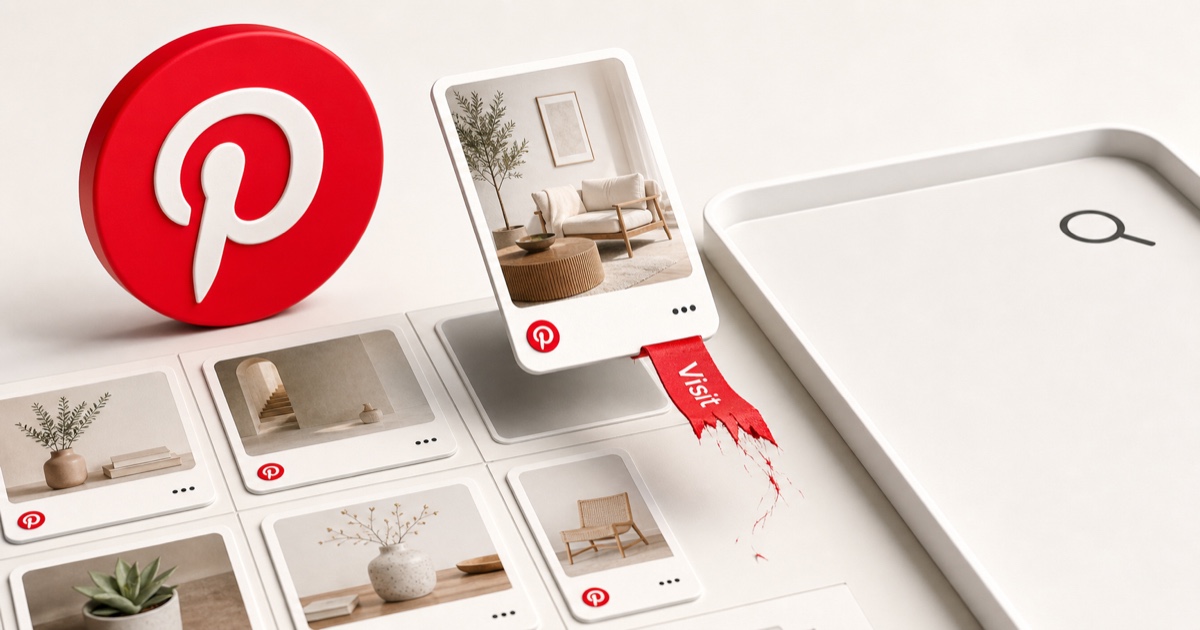
You saved a Pinterest pin to come back to: the sheet-pan dinner, the paint color, the DIY shelf you were finally going to build. Months later you open the board, tap the pin, and the "Visit" button drops you on a 404. The picture is right there. The thing you actually wanted, the recipe, the product, the how-to, is gone.
Here's the twist: Pinterest is the best-organized save system of any big platform. It has boards, sections, secret boards, and, unlike Instagram or TikTok, it actually lets you search your own saves. But that polish hides a sharper problem. A pin isn't a copy of a page. It's a pointer to someone else's website, and that website is exactly what rots, quietly, while the thumbnail keeps looking fine. Here's where your saves live, how to organize and search them, why they still break, and how to keep every one for good.
The quick answer: where Pinterest saves live
On Pinterest, you don't save a pin into a single "Saved" bucket. You save it to a board, and Pinterest makes you pick one (or create a new one) every time. That's the whole model: boards are your folders, and there's no loose, un-foldered pile.
To find your saves:
- Mobile app: Tap your profile picture (bottom right) to open your profile. Your boards are listed there. Open any board and it lands on the All saves tab, which is every pin you've saved to it.
- Desktop web (pinterest.com): Click your profile in the top right. Same thing: your boards, each opening to All saves.
- Saving a pin: On a pin, tap Save, then choose a board or tap Create board. On desktop, use the down-arrow next to the Save button to pick the board.
If a board looks empty, check the tab
Each board has more than one tab. Besides All saves (your actual pins), Pinterest adds More ideas (algorithmic recommendations) and, on some fashion and home boards, Make it yours (shopping recs). If your saves look missing, make sure you're on All saves, not a suggestions tab.
Boards, sections, and secret boards: give Pinterest credit
This is where Pinterest genuinely beats the other save systems. Where Reddit gives you one flat list and Instagram gives you Collections and nothing else, Pinterest hands you a real filing cabinet:
- Boards are your top-level folders, and you can have a lot of them.
- Sections subdivide a board by theme. A "Home" board can hold "Living room," "Kitchen," and "Outdoor" sections, so a big board doesn't turn into an endless scroll.
- Secret boards are private to you (and anyone you invite). They don't show on your public profile or in search, the original pinner isn't notified, and the pin's save count doesn't tick up.
- Group boards let you invite collaborators to add and organize pins together, with per-person permissions.
Boards are public unless you make them secret. It's a real organizing system, and it's the reason Pinterest saves feel tidier than any other platform's. Which makes the next part sting a little more.
Yes, you can actually search your saved pins
Most platforms don't let you search your own saves at all. We mapped that wall across X, Reddit, Instagram, and TikTok in where your saved posts actually go: folders or not, none of them let you search by what a save was about. Pinterest is the exception.
It's called Search your Pins, and it's a little hidden:
- Desktop: Click the top search bar, type a term, then click Search your Pins at the bottom of the search box.
- Mobile: Tap the search icon, tap the search bar, type a term, then scroll down and tap Search your Pins (some versions read "Search for your Pins").
You can also narrow a normal search to a Your Pins filter, and search your Boards tab to find a board by name. It matches your saves by their text, the title and description Pinterest has for each pin, so it's keyword search, not "find the recipe with chickpeas in it." But it exists, it works, and it's more than almost any competitor offers.
So if Pinterest lets you organize and search, what's the catch? The catch is what a pin actually is.
Why your saved pins still lead to dead pages
Open any pin and you'll see two different things bolted together: an image, which Pinterest hosts and caches on its own servers, and a destination link, the "Visit" button that sends you to the outside website the pin came from, a recipe blog, a shop, a tutorial. Those two parts fail independently, and that's the whole problem.
The image is durable. Pinterest keeps a copy, so the thumbnail on your board almost always keeps rendering. The destination link is not durable at all, because Pinterest never owned that page. When the source site changes, the link rots:
- The original page is deleted or moved. The blogger reorganizes, the shop pulls the product, the recipe site rebuilds its URLs, and the "Visit" button now lands on a 404 or a generic homepage.
- The whole site goes down. Domains lapse and small blogs shut off. When the site behind a pin disappears, every pin pointing at it dies at once.
- The original pin is deleted. If the pinner removes the source pin, it can drop out of feeds and search. Deleted pins can't be recovered.
- Pinterest removes a pin for a policy violation, which takes it out for everyone.
The tile lies: a live-looking pin can point at nothing
This is what makes Pinterest rot so sneaky. On Reddit a dead save reads "[removed]"; on TikTok it turns into a gray "unavailable" tile. On Pinterest the image stays, so the pin looks perfectly healthy, right up until you tap "Visit" and hit a dead page. Pinterest even admits it: if a pin "leads to a blank page," it may quietly swap the link for a different one. Your save still shows a pretty picture. What it pointed to is gone.
A saved image with no working link is a screenshot, not a save. The recipe, the instructions, the product, the actual reason you pinned it, lived on the page, and the page is what you lost.
Can you back up your Pinterest boards?
Pinterest does offer a data download, and it's worth knowing, but it has the same flaw every platform export shares.
- Desktop: Bottom-left menu → Settings → Privacy and data → Request your data → Start request.
- Mobile: Profile picture → Settings → Privacy and data → Request your data → Start request.
- Pinterest emails a download link (through a secure third-party service) that can take up to 48 hours to arrive.
The catch, and you can probably guess it by now: the export is an archive of your account data, so your saves come back as references and links, not the pages behind them. It captures the addresses of what you pinned, which is precisely the part that rots. When a destination 404s, the exported link is already dead, same as it was on your board. You've backed up the pointers, not the content.
Sitting on links you're not sure still work?
Run a board's links through our free dead link checker to see which ones already 404, and grab Wayback Machine snapshots for the dead ones in the same pass. No signup, no API key.
Pinterest saves, option by option
| Approach | Searchable by topic? | Keeps the page? | Survives a 404? |
|---|---|---|---|
| Boards, sections, and Search your Pins | Yes | No | No |
| Saving the pin's image | No | No | No |
| Request your data export | No | No | No |
| Capture-first library (Stashr) | Yes | Yes | Yes |
Pinterest earns the check in the first column that Instagram and TikTok can't: you really can search your saves. But look at the next two columns. Organizing and searching a pin does nothing to preserve the page it points to, and neither does saving the image or exporting your data. Only the last row keeps the thing you were actually saving.
How to keep every Pinterest save for good
The reason native pins rot is that they were never copies. A pin is an address, and addresses go stale. So the fix is to capture the page, not just the link, the moment you save it.
That's what Stashr is built to do. Its browser extension watches for saves on the platforms you already use, and the instant you save something, it mirrors the content itself, the image and the destination page, into a private library of your own. Because it's a real copy:
- It survives the 404. The source blog can vanish or reshuffle its URLs; your saved copy stays readable.
- It's not just a thumbnail. You keep the actual page you pinned, not a pretty tile pointing at a dead link.
- It's all in one place. Pinterest lands in the same searchable library as your Instagram saves, saved tweets, and Reddit saves, instead of a separate silo.
- You can search it the way you think. Every save is AI-tagged on the way in, so plain-English search goes further than keyword matching:
Pinterest support for Stashr is on the way. In the meantime, the free tools above will tell you which of your pins have already died, and help you save what's left before it does.
Common questions
Where do I find my saved pins on Pinterest?
Open your profile (your picture, bottom right on mobile or top right on desktop). Your boards are listed there, and each board opens to its All saves tab, which shows every pin you saved to it. There's no single global "saved" list, because every pin lives on a board.
Can I organize my saved pins into folders?
Yes, and better than most apps. Boards are your folders, sections let you split a board by theme, and secret boards keep chosen boards private. You can also share group boards with collaborators. It's the strongest built-in organizing system of any big save platform.
Can I search my own saved pins?
Yes. Tap the search bar, type a term, and choose Search your Pins (on mobile, scroll to the bottom of the search suggestions to find it). It's keyword search over your saves' titles and descriptions, so it finds pins by their text rather than by what's inside the image, but it's real search, which Instagram, TikTok, and Reddit don't offer.
Why do my saved pins go to a dead page or 404?
Because a pin is a pointer to an outside website, not a copy of it. When that page is deleted, moved, or the whole site goes down, the pin's "Visit" link breaks, even though Pinterest still shows the cached image. So the tile looks fine while the destination is gone. See link rot for why this happens to every saved link over time.
How do I back up or export my Pinterest boards?
Use Settings → Privacy and data → Request your data. Pinterest emails a download link within about 48 hours. But the export gives you your pins as links and references, not the pages behind them, so it rots the same way your board does. To keep the actual content, use a capture-first tool that copies each save as you make it.
Is there a limit to how many pins I can save?
Pinterest used to cap accounts at around 200,000 pins. Its current help text says there's no stated limit on the number of pins you can create, though the number of boards per account is still capped. In practice, running low on space isn't the problem, keeping your saves alive is.
Stop losing the pages behind your Pinterest pins.
Stashr captures the real page the moment you save it, image and content together, auto-tagged and findable in plain English even after the original 404s.
14-day free trial · No credit card required · Cancel anytime