How to organize your bookmarks so you actually find them later
Folders, tags, naming, and a cleanup pass that works. A practical system for organizing bookmarks across browsers and apps so the thing you saved is still findable months later.
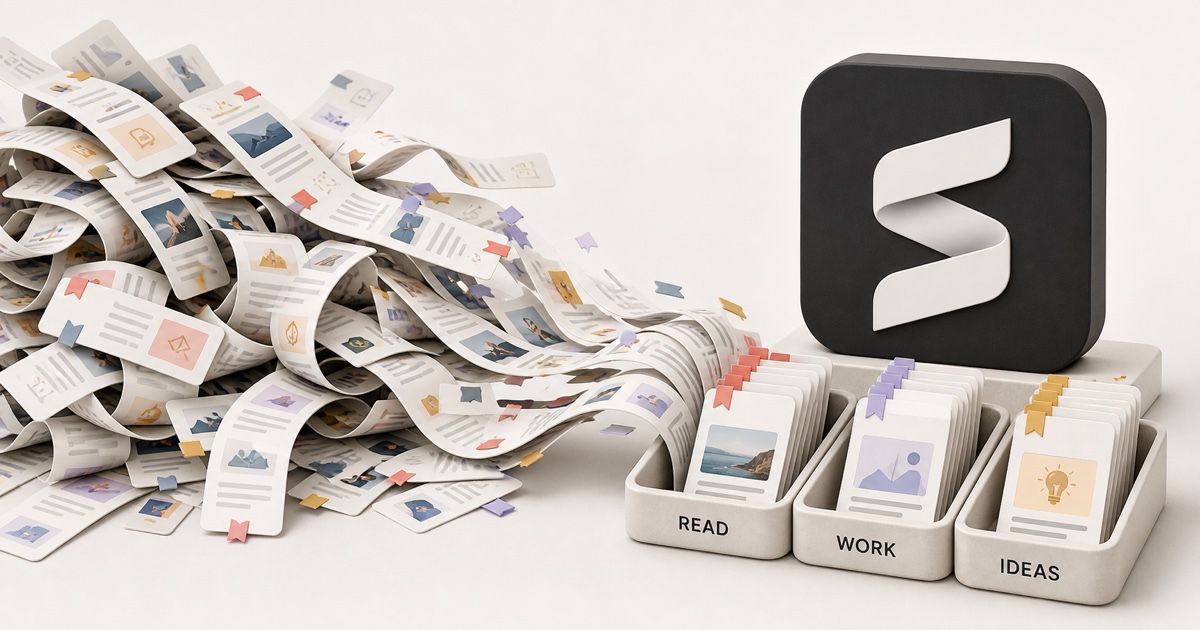
You have a bookmarks bar two folders deep, an "Other bookmarks" pile with four hundred orphans, and a habit of re-Googling the article you already saved last year. Organizing them feels like a weekend project you'll never start, so the pile just grows.
The good news: a bookmark system that actually holds up doesn't need a weekend. It needs a shallow folder structure, a flat layer of tags, one cleanup pass, and a search you can trust. Here's how to build it, in the order that makes the mess shrink fastest.
The quick answer: a system that works
If you want the short version, do these four things in order:
- Flatten your folders. Collapse to a handful of broad, one-level buckets (Work, Read later, Reference, Recipes, Shopping). Deep nested trees are where bookmarks go to be forgotten.
- Add a thin layer of tags. A bookmark about a React performance article is "work" and "reference" and "react." Folders force you to pick one. Tags let it live in all three.
- Run a cleanup pass once. Remove duplicates, delete the links that already 404, and keep only what you'd actually open again.
- Make it searchable. Folders help you browse; search is how you actually find a specific thing. If your tool can't search the contents of a page, that is the gap to close.
Everything below is just these four steps in detail, plus why the usual folder-only approach quietly fails.
Step 1: Folders, but shallow
Folders feel like organization, so people build elaborate trees:
Work → Engineering → Frontend → React → Performance. Five clicks deep, and the
moment you save something that's both "React" and "accessibility," you have to
guess which branch you'll look in later. You always guess wrong.
The fix is to treat folders as broad buckets, not a filing cabinet. One level deep, six to ten of them, named for how you use the bookmark rather than what it technically is:
- Read later for things you haven't gotten to yet.
- Reference for docs, guides, and things you reopen.
- Work / Personal if that split matters to you.
- Shopping, Recipes, Travel, or whatever your actual life looks like.
The test for a good folder: you can decide where a new bookmark goes in under a second, without hovering between two options. If you're hesitating, your folders are too specific. Broaden them.
The bookmarks bar is prime real estate
Keep only the 5 to 8 links you open daily on the visible bar, and use the favicon with no text label to fit more in. Everything else belongs in a folder or behind search, not competing for the one row you see all day.
Step 2: Tags do the work folders can't
Here's the core problem with a folders-only system: a bookmark usually belongs to more than one place, but a folder forces it into exactly one. That single choice is the reason you can never find things. You filed the article under "Work" but you're now looking in "React," and it's nowhere.
Tags fix this because they're not exclusive. The same page can carry react,
performance, reference, and work at once, and it surfaces no matter which
of those you search. Think of folders as the one shelf an item sits on, and tags
as every label you'd ever search by.
A few rules that keep tags useful instead of a second mess:
- Keep them lowercase and singular (
recipe, notRecipesandrecipeandcookingall at once). Pick one word per concept and reuse it. - Tag by what you'll search for, not by an exhaustive taxonomy. If you'd never type it into a search box, it's not a useful tag.
- Don't over-tag. Two or three meaningful tags beat ten noisy ones.
Most browsers don't support tags natively, which is exactly why people fall back on deep folders. A dedicated bookmark manager (or a capture tool like Stashr that auto-tags every save for you) is what makes this layer painless.
Step 3: The one-time cleanup pass
You can't organize a graveyard. Before you sort anything, shrink the pile to the links that are actually alive and worth keeping. This is a one-time pass, and it's the step that makes everything after it feel light.
Kill the duplicates
If you've imported bookmarks between browsers even once, you have duplicates, often dozens. Sort your list by URL or title and the repeats cluster together, or run a duplicate bookmark finder over your exported file to catch them in one shot.
Delete the dead links
A bookmark is just a pointer. When the page behind it moves or gets taken down, the bookmark still looks fine in your list right up until you click it and hit a 404. This is link rot, and over a few years it claims a real chunk of any bookmark collection. Most browsers won't flag a dead bookmark for you, so the reliable move is to prune anything that 404s. Our free dead link checker scans a whole export at once, so you don't have to click through your oldest folders by hand.
Organizing won't save a link that's already rotting
Even a perfectly tagged bookmark breaks when the original page disappears. A folder structure protects nothing about the content itself. If a page genuinely matters, you need a saved copy, not just a tidy pointer to it. More on that below.
Export and back up what's left
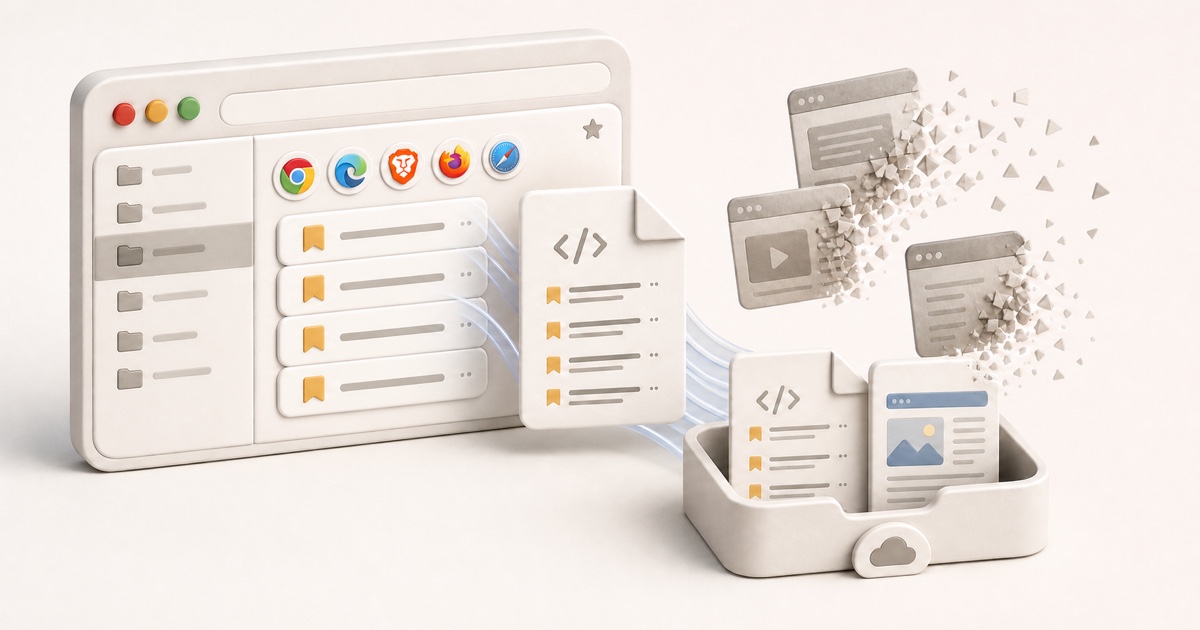
Once the set is clean, export it so the work isn't trapped in one browser. Every
major browser exports to a single bookmarks.html file (we walk through exactly
where that menu hides in how to back up your browser
bookmarks). If you want to move that file into
another tool, a bookmarks HTML converter turns
it into clean Markdown, CSV, or JSON.
Step 4: The part folders can't do, search
Here's the uncomfortable truth at the center of bookmark organizing: folders
and tags only help if you remember the label you filed something under. And you
usually don't. You remember the gist, "that article about why deep folders
fail," not whether you tagged it productivity or organization or filed it in
Reference.
That's why the single biggest upgrade to your bookmarks isn't a better folder tree. It's search that reads the actual contents of the page, so you can find a bookmark by what it was about instead of by where you happened to put it.
| Approach | Find by topic? | Survives a delete? | Cross-platform? |
|---|---|---|---|
| Browser folders only | No | No | No |
| Folders + manual tags | Yes | No | No |
| Bookmark manager | Yes | No | Yes |
| Capture-first library | Yes | Yes | Yes |
The jump from the third row to the fourth is the one that matters most. A normal bookmark manager organizes your pointers well, but the moment a saved page is deleted, your neatly tagged entry resolves to nothing. A capture-first library copies the content the instant you save it, so the organization you did still has something to point at.
Where Stashr fits
Stashr is built around exactly the four steps above, minus the manual labor. Its browser extension watches for saves across the platforms you already use, and the moment you save something it mirrors the full page into a private library of your own. Because it's a real copy that's tagged on the way in:
- Tagging is automatic. Every save is AI-tagged as it lands, so the cross-cutting layer that folders can't give you is just there, no manual upkeep.
- Search works the way you remember. You search by what the thing was about, in plain English, across everything you've saved at once.
- It survives deletion. The original page can vanish; your organized copy stays put. (This is also why your saved social posts keep disappearing, which we dug into in where do your saved posts actually go.)
You don't have to adopt all of it to benefit from the system. The folders, tags, and cleanup pass stand on their own. But if you've ever organized your bookmarks perfectly and still couldn't find one six months later, the missing piece was never a better folder. It was a copy you could search.
Common questions
Folders or tags, which should I use?
Both, with different jobs. Folders give each bookmark one broad home so you can browse; tags add the cross-cutting labels so you can find the same item from multiple angles. Folders shallow, tags flat.
How many bookmark folders should I have?
Few. Aim for six to ten broad, one-level folders named for how you use things (Read later, Reference, Work). If you're building a third level of nesting, that's usually a sign the layer should be a tag instead.
How do I clean up thousands of old bookmarks?
Do it in one pass: dedupe first, then delete dead links, then keep only what you'd actually reopen. A duplicate bookmark finder groups the repeats in an exported file so you can clear them in one go, leaving you a much smaller, living set to sort by hand.
Will organizing my bookmarks stop them from breaking?
No. Organization makes bookmarks easier to find; it does nothing to stop the page behind one from going offline. The only thing that survives a deletion is a saved copy of the content, which is what a capture-first tool keeps for you.
Organize once, find it forever.
Stashr captures every save the moment you make it, auto-tags it, and makes your whole library searchable in plain English. No folder trees required.
14-day free trial · No credit card required · Cancel anytime