How to organize your saved Instagram posts
Hundreds of saves in one endless grid? Sort them into Instagram Collections, move and rename them, share one with friends, and export the list.
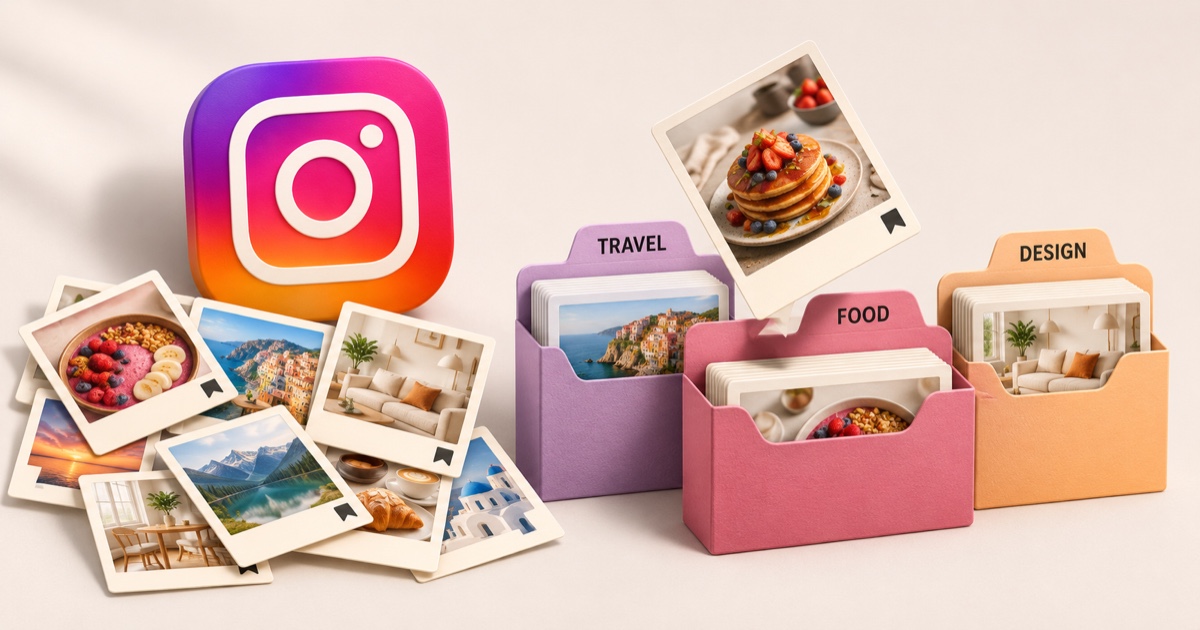
Your Instagram Saved tab started as a handful of recipes. Now it's a few thousand posts in one grid, and the one you want is somewhere near the bottom.
The quick answer: use Collections
Collections are named folders inside your Saved tab, and they're the main organizing tool Instagram gives you. Every save lands in All posts. A Collection is a smaller pile you make on top of that, so filing a post into one doesn't remove it from All posts.
Since November 24, 2026, people in the US and Canada may also get a prompt to let Meta's Muse assistant sort new saves into Collections. Everyone else is filing by hand.
To find them, go to your profile, tap the menu (☰), then Saved. Your Collections sit next to All posts. If you can't find Saved at all, start with our guide to finding saved posts on Instagram.
How to create a Collection
You have two ways in, and Instagram's help center covers both:
- While saving a post. Press and hold the bookmark icon under the post or reel, then pick a Collection or tap to create a new one. This is the habit worth building, because the post gets filed the moment you save it.
- From Saved. Open Saved, tap the +, name the Collection, and choose posts from your existing saves to start it off.
Instagram moves these labels between app versions, so yours may look slightly different.
How to add saves you already have
This is the job most people need: a big, unsorted All posts list.
- Go to Saved and open the Collection you want to fill.
- Tap the menu (⋯) in the top right, then Add to collection.
- Select the saved posts to add, then tap Done.
Those steps come from Instagram's guide to editing Collections. Work through your saves in batches, starting with the newest, since those are the ones you're most likely to want again.
How to move a post to another Collection
Instagram has no Move option. To move a post:
- Add it to the new Collection (above, or press and hold its bookmark icon).
- Open the post, tap the menu (⋯), then Remove from Collection for the old one.
Removing a post from a Collection keeps it saved. It stays in All posts until you unsave it.
How to rename, recover, or delete a Collection
All three live behind the same screen. Open the Collection, tap the menu (⋯), then Edit collection:
- Rename it. Tap the current name, type a new one, and tap Done.
- Change the cover. Tap Change cover, pick a post, and tap Done. A distinct cover makes a Collection easier to spot in a long row.
- Delete it. Choose Delete collection at the bottom. This deletes the folder, not the posts: they stay in All posts. If you want them gone too, unsave them separately. Our guide to deleting saved posts covers unsaving in bulk.
How to share a Collection with friends
A collaborative collection is a shared folder that you and the people you invite can all add to. It's handy for planning a trip or a renovation with someone.
Third-party walkthroughs describe the flow like this, though Instagram changes it often, so treat it as a guide:
- Turn it on when you create the Collection. Switch on the collaborative option and pick who to invite. Some guides report you can't convert an existing private Collection later.
- Or start from a chat. Saving a post someone sent you in a DM can offer a new Collection shared with the people in that thread.
- Everyone in it can add posts, and the Collection shows up in each member's Saved tab and in the chat it came from.
Are Instagram Collections private?
Yes, unless you make one collaborative. Regular Collections are private like the rest of Saved: only you see them, and the poster isn't told you saved their post. A collaborative collection is visible to its members, so keep anything personal in a regular one. The Instagram saved posts guide has the full privacy answer.
A filing system that holds up
Collections only help if you can still find things in them a year from now. A few habits keep them useful:
- Keep the list short. Eight to twelve broad Collections (Recipes, Home, Travel, Style, Work) beat fifty narrow ones you'll never scroll.
- Name them by what you'll do with the post, not where it came from. "Dinner ideas" is easier to reach for than "Food accounts."
- File at save time. Press and hold instead of tapping. Filing later is the step everyone skips.
- Make a "To sort" Collection for saves you can't place yet, and clear it monthly.
Where Collections fall short
Even a tidy system runs into Instagram's limits:
- Search is limited. Instagram has long had no reliable search inside Saved. Our Instagram guide tracks where that stands. Inside a Collection, you're usually still scrolling.
- No tags. You can file one post into several Collections, but every label is a folder you made and filed by hand. Nothing groups your saves by what's in them.
- It's mostly manual. Outside Muse's new prompt for new saves, thousands of existing saves means thousands of taps.
- Saves can still disappear. A Collection holds pointers to other people's posts. If the author deletes one or goes private, it can vanish from your folder too.
How to export a Collection
Instagram has no "download this Collection" button. The closest thing is your data export, which includes your saves and which Collection each one is in. It holds links, not the photos or videos themselves.
- Request your data and choose JSON. Our guide to exporting your Instagram data walks through it.
- Open the ZIP in the Instagram saved posts exporter.
It reads
saved_collections.jsonand lets you filter by Collection, then download a CSV, JSON, Markdown, or link list. It runs in your browser, so the file never leaves your computer.
Export before a big cleanup
Unsaving and deleting Collections has no undo. Grab an export first so you have a list of everything you had.
Let tags do the filing
If your Saved tab is past the point where hand-filing feels possible, a separate library can do the sorting for you. That's what Stashr is for.
Its desktop browser extension imports the Instagram saves you already have and copies each one as you save it: the caption, author, and photos, including every carousel item. Reels keep their cover image and play from Instagram. Then:
- AI tagging labels each save by what's in it, so a single post can be "recipe", "pasta", and "weeknight" at once. You can edit the tags or add your own.
- Living collections are saved filters (a tag, a creator, a date range) that fill themselves with every save that matches, past and future.
- Plain-English search finds a post by what you remember about it:
Stashr doesn't carry over your Instagram Collection names, since it tags each save instead. Saves from the phone app arrive with your next import, and a post that's already been deleted can't be recovered.
Common questions
Can I put one post in more than one Collection?
Yes. Press and hold the bookmark icon and tick each Collection you want. Guides like Zapier's describe a checkmark on every Collection the post is already in, and tapping a checked one removes it.
Why did my Collections disappear?
Check All posts first. Deleting a Collection keeps its posts saved. A single missing post is usually the post itself: if its author deleted it or went private, it can vanish or stop opening wherever you filed it. If the whole Saved tab looks wrong, see Saved not loading.
Stop hand-filing your Instagram saves.
Stashr imports your saves, tags each one by what's in it, and lets you search them in plain English. 14-day trial, no card required.
14-day free trial · No credit card required · Cancel anytime