How to save a web page before it disappears
How to save a web page so it survives deletion and link rot: browser Save As, print to PDF, SingleFile, the Wayback Machine, and capture-first, compared.
You found the page that mattered. A recipe, a spec, a thread that finally explained the thing. You bookmarked it, felt done, and moved on. Months later you click it and get a 404, a redirect to nowhere, or "this page isn't available." The bookmark is fine. The page is gone.
The fix is to save the content, not the address. A bookmark is a pointer to a page on someone else's server; a saved copy is yours to keep. Here are the ways to actually save a web page so it survives deletion, redesigns, and link rot, from a two-second Wayback snapshot to a full offline copy you control.
The quick answer
If you just need the fastest thing that works:
- For a public page you want to keep a link to forever: push it to the Wayback Machine with Save Page Now. Two seconds, nothing to install, and the snapshot outlives the original.
- For a page you want to read offline, exactly as it looks now: use the free SingleFile extension to save the whole page as one self-contained HTML file, or print it to PDF.
- For the posts you save every day and want to find later: a capture-first library keeps the full post the moment you save it and makes it searchable, so you're not managing loose files at all.
The rest of this guide walks through each method, when it wins, and where it falls down.
Why bookmarking a page doesn't save it
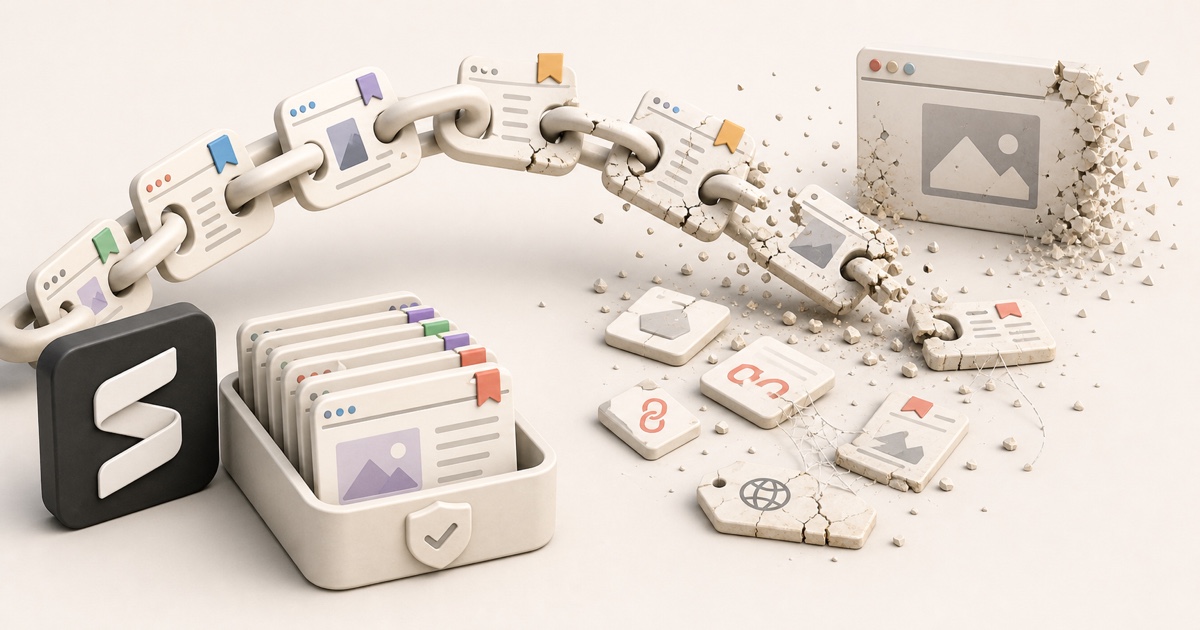
A browser bookmark, a "saved" post, a link pasted into your notes: they all store the same thing, an address. The actual page still lives on a server you don't control. So the moment the author deletes it, the site migrates to a new CMS, the domain expires, or the whole company folds, your saved link points at nothing.
Your bookmark looks alive until you click it
A saved link gives no warning. It sits in your list looking exactly as healthy as the day you saved it, right up until you tap it and find the page died months ago. You only discover the rot when you need the page most.
This is link rot, and it's the default fate of almost everything you save. The only durable fix is the same in every case: keep a copy of the content itself. These are the six ways to do that, from quickest to most complete.
Six ways to save a web page
1. Browser "Save As" (Webpage, Complete)
Every browser can save the page you're on to your disk. Press Ctrl+S
(Cmd+S on a Mac), choose Webpage, Complete, and you get an .html file plus
a folder of its images, styles, and scripts.
- Best for: a quick local copy of a single article you already have open.
- Watch out: "Complete" saves a page and a messy sidecar folder that's easy to lose track of; move one without the other and the copy breaks. It also captures the page exactly as loaded, so anything that needed a click or a scroll to appear may be missing. It works fine on logged-in pages, because it saves what's already rendered in your browser.
2. Print to PDF
From the print dialog (Ctrl+P / Cmd+P), choose Save as PDF instead of a
printer. You get one tidy, portable file that opens anywhere and is easy to
archive, search, and share.
- Best for: receipts, documentation, and long articles you want as a single flat file.
- Watch out: a PDF is a snapshot of the layout, not the live page, so interactive elements, videos, and anything below a "load more" button won't survive. Some pages print with broken formatting or half the content cut off.
3. SingleFile (one self-contained HTML file)
SingleFile is a free, open-source extension for Chrome, Edge, Firefox, and Safari that solves the messy-folder problem: it bundles the entire page, images and fonts and styles included, into a single HTML file you can open in any browser, offline, forever. One click, one file.
- Best for: the cleanest full-fidelity offline copy of an article, and the closest thing to "the page, frozen." It captures logged-in and paywalled pages you can currently see, since it saves what's rendered.
- Watch out: it's still one page at a time (there's an auto-save mode, but it's blunt), and the files pile up on your disk with no search across them unless you organize them yourself.
4. The Wayback Machine (Save Page Now)
The Internet Archive's Wayback Machine keeps public snapshots of the web. Go to web.archive.org, paste your URL into Save Page Now, and it stores a copy of the page as it looked today, at a permanent archive link you can cite even after the original dies. It's free and there's nothing to install.
- Best for: public pages you want a durable, shareable, citable link to, and for proving what a page said on a given date.
- Watch out: Save Page Now archives one page at a time and only captures
what's public. It can't snapshot a private post, a logged-in dashboard, or
anything behind a password or a
robots.txtblock. And the copy lives on archive.org, not on your disk, so you're trusting them to stay online.
Archive it before it's gone
A web archive can only capture a page that's still up. If you submit a URL after the page has already 404'd, you archive the error, not the content. Save the pages you care about while they're alive, not once you notice they're dead.
5. archive.today (for JavaScript-heavy pages)
archive.today (also reachable at archive.ph) is a second on-demand archive that's better at freezing modern, script-heavy pages. It renders the page in a real browser engine and stores both an interactive snapshot and a flat screenshot, so single-page apps and dynamic layouts that the Wayback Machine sometimes mangles come out looking right.
- Best for: a public page that's mostly rendered by JavaScript and doesn't archive cleanly elsewhere.
- Watch out: like any public archive, it only sees public pages, so logged-in and private content is off the table. Treat it as a useful second option rather than your only copy.
6. Capture-first: save the content the moment you save it
Every method above is something you have to remember to do, page by page, after the fact. That's fine for the occasional article you deliberately want to keep. It falls apart for the stuff you actually lose most: the posts you save while scrolling, meaning to come back to, that quietly get deleted before you do.
A capture-first tool flips the order. Instead of bookmarking a link and hoping the page survives, it keeps a full copy of the content the instant you save it, so there's nothing to remember and nothing left to rot.
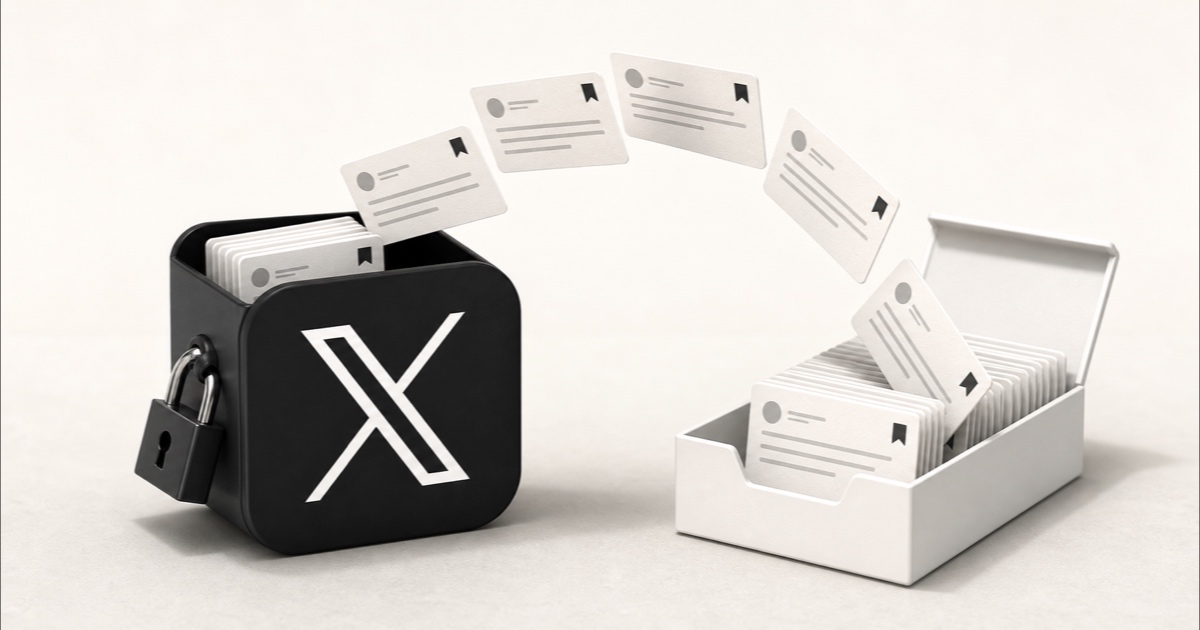
That's what Stashr does. Its browser extension watches for saves on X, Reddit, Instagram, and TikTok, and the moment you tap save it mirrors the full post (text, author, media, and context) into a private library of your own. You can also right-click to clip any image or passage from any page into that same library. Because these are real copies, not links:
- They survive deletion. The original can vanish; your copy stays put, even the logged-in and expiring social content a public archive can never reach.
- They're all in one place, instead of a folder of loose HTML files and a pile of archive links.
- You can search them the way you think, because every save is AI-tagged on the way in:
For a standalone article you want as a full offline file, SingleFile or the Wayback Machine is still the right tool. Capture-first is the fix for the saves that rot fastest and that you have the least patience to archive by hand.
Which method should you use?
| Method | A copy you control | Private / logged-in pages | Captures posts as you save |
|---|---|---|---|
| Browser Save As | Yes | Yes | No |
| Print to PDF | Yes | Yes | No |
| SingleFile extension | Yes | Yes | No |
| Wayback Machine | No | No | No |
| Capture-first (Stashr) | Yes | Yes | Yes |
Read it by column. The first three give you a local file you own but only one page at a time, by hand. The Wayback Machine is the easiest durable link, but the copy lives on someone else's servers and can't touch anything private. Capture-first is the only one that keeps your private, logged-in saves automatically, as you make them.
First, find the links you've already lost
If you're archiving pages now because you got burned once, it's worth checking how much of your existing pile is already dead. A dead link checker scans a list of URLs, or a whole bookmarks file, and flags the ones that no longer resolve, so you know which pages to rescue from an archive before you lose them for good.
Clean while you're in there
An archive pass is a good moment to declutter. Our free tools can find and merge duplicate bookmarks and convert a messy bookmarks.html into a clean spreadsheet so you're only archiving links worth keeping. No signup required.
Common questions
How do I save a web page permanently?
Keep a copy of the content, not just the link. For a public page, submit it to the Wayback Machine for a permanent archived snapshot. For your own offline copy, save it as a single HTML file with an extension like SingleFile, or print it to PDF. A bookmark alone isn't permanent, because it only points at a page that can be taken down at any time.
How do I save a web page as a PDF?
Open the print dialog with Ctrl+P (Cmd+P on a Mac) and choose Save as PDF
as the destination instead of a printer. You'll get a single flat file that opens
anywhere. It's great for text-heavy pages, but it won't preserve videos or content
hidden behind "load more" buttons.
How do I save a page for offline reading?
Use SingleFile to bundle the page into one self-contained HTML file, or your browser's Save As → Webpage, Complete. Both store the page's text and images locally so you can open it with no internet connection. PDF works too if you don't need the interactive version.
Can I archive a page that requires a login?
Public archives like the Wayback Machine and archive.today can't, because they only reach pages that are public. To keep a logged-in or private page, save it yourself while you're viewing it (SingleFile, Save As, or print to PDF), or use a capture-first tool that copies your logged-in social saves the moment you make them.
What's the difference between bookmarking and saving a page?
A bookmark stores the page's address; saving stores the page's content. A bookmark breaks the instant the original page is deleted, moved, or set private. A saved copy (an HTML file, a PDF, or an archive snapshot) keeps working no matter what happens to the original.
Stop saving links that die.
Stashr captures the full content of everything you save across X, Reddit, Instagram, and TikTok the moment you tap it, so link rot never reaches your library.
14-day free trial · No credit card required · Cancel anytime