How to clean up your bookmarks: duplicates, dead links, and a pile that stays small
A fast, safe bookmark cleanup: back up first, delete duplicates, find dead links, prune the rest, and stop the pile from growing back.
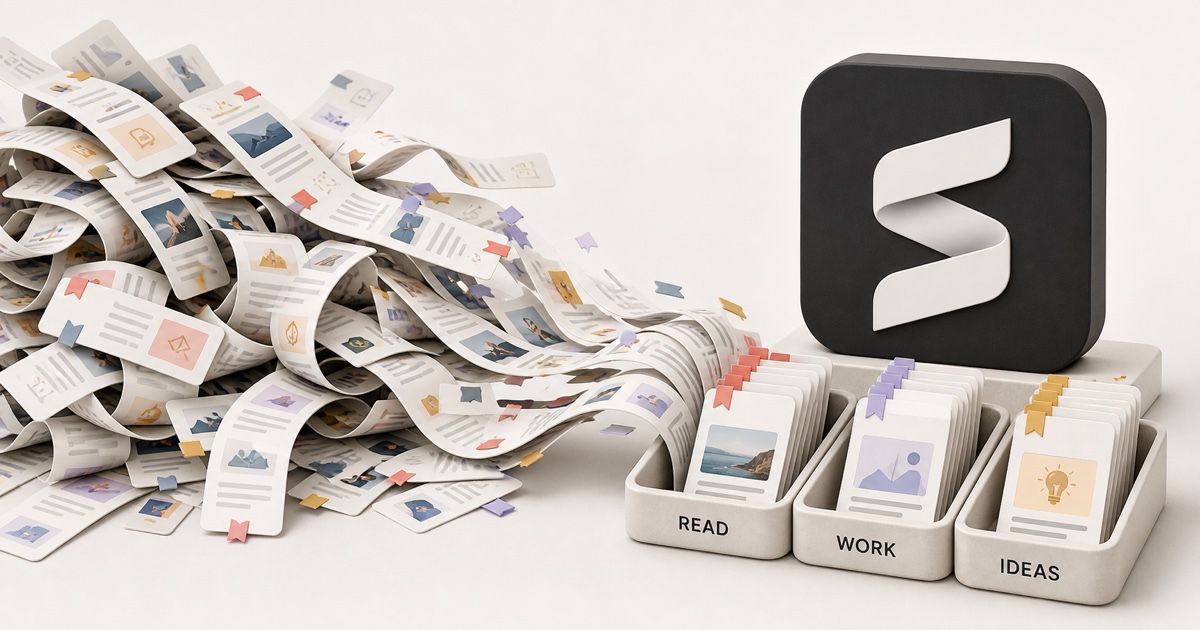
Somewhere in your browser is a bookmark pile you've been avoiding: years of saves, half of them duplicates, a chunk of them pointing at pages that no longer exist, and a long tail of "I'll read this someday" that someday never came for. Cleaning it up feels like it needs an afternoon you don't have.
It doesn't. A real bookmark cleanup is one safe backup, two mechanical passes (duplicates, then dead links), one honest pruning pass, and a small change so the pile never grows back. In that order. Here's the whole thing.
The quick answer: a cleanup pass in five steps
- Back up first. Export your bookmarks to a
bookmarks.htmlfile so every delete is reversible. - Delete the duplicates. Group your bookmarks by URL and clear the repeats in one sitting, not one at a time.
- Find the dead links. Old bookmarks rot; check them and recover anything important from the Wayback Machine.
- Prune the "someday" saves. If you wouldn't re-open it this month, it goes.
- Change how you save. Keep the survivors in a system with tags and real search, and capture content instead of bare links so the next cleanup never needs to happen.
The rest of this guide is those five steps in detail, including where your browser helps and where it quietly leaves you on your own.
Step 1: Back up before you delete anything
Every step after this one involves deleting things, and a cleanup you're afraid
of is a cleanup you'll abandon. So make it consequence-free first: every major
browser exports your entire bookmark collection to a single bookmarks.html
file in a couple of clicks. We walk through exactly where the menu hides in
Chrome, Edge, Brave, Firefox, and Safari in how to back up your browser
bookmarks.
Once you have the file, you can delete with a free hand. Worst case, you re-import it and you're back where you started.
The export is also your power tool
That bookmarks.html file isn't just insurance. It's the input for every
bulk-cleanup tool below, and a bookmarks HTML
converter can turn it into a clean CSV or
spreadsheet if you'd rather triage a big collection there. Free, and it runs
entirely in your browser.
Step 2: Delete the duplicates
If you've ever imported bookmarks from another browser, merged an old laptop's
profile, or had sync misbehave, you have duplicates. Usually more than you
think, because the same page also hides behind slightly different URLs: one
copy saved from a newsletter with ?utm_source=... tracking junk on the end,
one saved clean.
Your browser won't do this for you. Chrome has no built-in duplicate finder, and neither do the other major browsers; the closest native move is opening Chrome's bookmark manager and sorting by name so repeats sit next to each other, then deleting them one by one. Fine for fifty bookmarks, miserable for two thousand.
The faster way is to run your exported file through a duplicate bookmark finder. It reads a Chrome, Edge, Brave, Firefox, or Safari export, strips tracking parameters before comparing so disguised duplicates still group together, and shows every repeated URL in one list. Clear them in one pass, then re-import the clean file (or just delete the same entries in your browser).
Step 3: Find the dead links
Here's the uncomfortable part of any old bookmark collection: a lot of it points at nothing. In a 2024 Pew Research Center study, 38% of webpages that existed in 2013 were no longer accessible, and a quarter of all pages that existed at some point between 2013 and 2023 were already gone. Your ten-year-old bookmarks folder is statistically about a third graveyard.
This is link rot, and no browser flags it. A dead bookmark looks exactly like a live one in your list, right up until you click it.
For the cleanup pass:
- Triage oldest first. Rot correlates with age, so your oldest folders hide the most dead weight. Click through anything old that you actually care about, and delete what 404s.
- Recover before you delete. If a dead bookmark still matters, paste its
URL into the Wayback Machine at
web.archive.org. If the page was public and crawled while it was alive, you can read the snapshot and save what you need from it. - Don't audit hundreds by hand. Our free dead link checker takes a bookmarks file, flags the broken entries, and finds Wayback Machine snapshots for the ones that died.
Step 4: Prune the saves you'll never open
Duplicates and dead links are mechanical. This step is the honest one. What's left after steps 2 and 3 is alive and unique, but a lot of it is aspirational: courses you'll never take, articles you'll never read, tabs you bookmarked just to feel okay about closing them. That's a habit with its own name and its own fixes (we wrote about digital hoarding separately), but for cleanup day one test is enough:
Would you plausibly re-open this in the next month or two? Reference pages and things you return to, keep. Someday-maybe material, delete. You already have the backup file from step 1, so nothing is truly gone; you're deciding what deserves space in the list you look at every day.
What's actually in the pile, and how to clear it
| What's in the pile | How it got there | How to clear it |
|---|---|---|
| Duplicates | Imports, sync hiccups, tracking-param variants of one URL | Group by URL, delete in one pass |
| Dead links | Link rot: pages deleted, moved, or taken private | Check them, recover keepers via the Wayback Machine |
| Someday saves | Bookmarked to feel okay about closing the tab | Delete unless you'd re-open it this month |
| Keepers | Genuinely useful, alive, unique | Tag them and make them searchable |
Step 5: Keep it clean (the part most guides skip)
A cleanup that ends here buys you six months. The pile grows back because the two forces that built it are still running: you keep saving faster than you sort, and the web keeps deleting pages out from under your links.
The first force is a system problem. Shallow folders, a thin layer of tags, and search you trust will keep a cleaned collection livable; we laid out that whole setup in how to organize your bookmarks.
The second force is the one no amount of organizing fixes. A bookmark is a pointer to a page you don't control, and pages die on their own schedule. The dead links you just deleted were once bookmarks you cared enough to save; today's keepers are quietly headed the same way.
That's the problem Stashr is built around. Instead of storing another pointer, its browser extension captures a full copy of what you save the moment you save it, then AI-tags it on the way in. Because your library holds content instead of links:
- Nothing in it can rot. The original page can vanish; your copy stays readable.
- Duplicates don't pile up. Saving the same post again doesn't create a second entry to clean later.
- You find things by meaning, not by filing. Search in plain English for what a save was about, across everything, instead of scrolling folders.
Do the five steps once, and let the way you save keep it that way.
Common questions
How do I delete duplicate bookmarks in Chrome?
Chrome has no built-in duplicate remover. You can open the bookmark manager and sort by name to spot repeats manually, or export your bookmarks and run the file through a duplicate bookmark finder, which groups every repeated URL (including copies that differ only by tracking parameters) so you can clear them in one pass.
How do I find dead links in my bookmarks?
Browsers don't flag them, so start with your oldest folders and click through
what you care about, deleting anything that 404s. For pages that mattered,
check web.archive.org for an archived snapshot before deleting. A dead link
checker that scans a whole bookmarks export at once is the bulk version of
this pass.
How often should I clean up my bookmarks?
If you keep saving bare links, roughly once or twice a year, because duplicates and rot accumulate on their own. If you switch to capturing content instead of links, cleanup mostly stops being a recurring chore: copies don't rot, and there's nothing to re-audit.
Should I delete old bookmarks or archive them?
Export a bookmarks.html backup first, then delete freely from your live
list. The backup preserves everything you removed, so "delete" really means
"move out of sight." For the handful of pages you genuinely want to keep
forever, keep a real copy of the content, not just the URL.
Make this your last bookmark cleanup.
Stashr captures the full content of everything you save, auto-tags it, and makes it searchable in plain English. Copies don't rot, and piles don't grow back.
14-day free trial · No credit card required · Cancel anytime