How to export Chrome bookmarks (and what to do with the file)
How to export Chrome bookmarks to an HTML file in three clicks, get them off Android or iPhone, move them to another browser, and turn the file into a CSV.

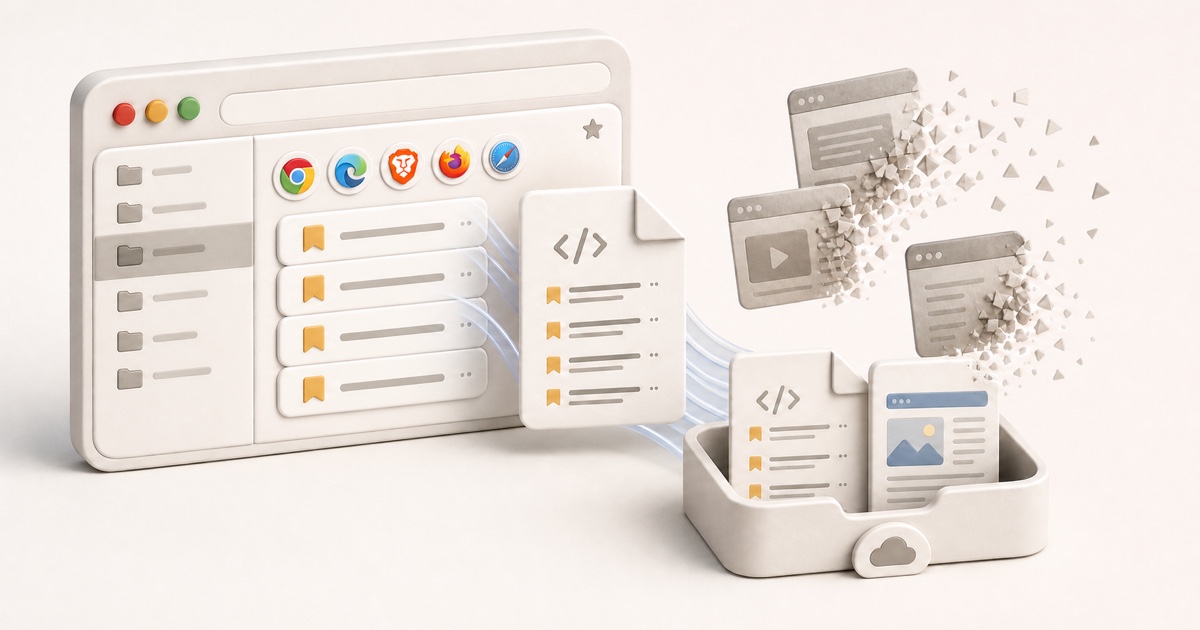
To export your Chrome bookmarks, open the Bookmark Manager (Ctrl+Shift+O on
Windows, Cmd+Option+B on Mac), click the three-dot menu at the top of that
page, and choose Export bookmarks. Chrome saves every bookmark and folder as
one HTML file that any other browser can import.
That's the whole job if you just need a copy. The rest of this guide covers the parts people get stuck on: the two three-dot menus, phones (which have no export button), moving to another browser, and turning the file into something you can actually open in a spreadsheet.
How to export bookmarks from Chrome, step by step
- Open Chrome on your computer.
- Open the Bookmark Manager. Click the three-dot menu at the top right of
the browser, then Bookmarks and lists → Bookmark Manager. Faster: press
Ctrl+Shift+O(Windows, Linux, ChromeOS) orCmd+Option+B(Mac), or typechrome://bookmarksin the address bar. - Open the Bookmark Manager's own menu. At the top of the Bookmark Manager page, click the three-dot menu there and choose Export bookmarks.
- Save the file. Chrome suggests a dated name like
bookmarks_10_13_26.html. Save it somewhere that gets backed up, like a cloud drive, not just your Downloads folder.
There are two three-dot menus
The browser's three-dot menu (top right of the window) doesn't have an export option. You need the second three-dot menu that appears inside the Bookmark Manager page itself. If you only see "Bookmarks and lists," you're still in the browser menu.
A few things to know about what gets exported:
- It's everything, every time. Chrome exports all your bookmarks and folders in one go. There's no option to export a single folder.
- It's one profile at a time. If you use several Chrome profiles (work and personal, say), each has its own bookmarks. Switch to each profile and export it separately.
- Nothing is removed. Exporting only writes a copy. Your bookmarks stay in Chrome exactly as they were.
How to export Chrome bookmarks on Android or iPhone
You can't, at least not directly. Chrome's Android and iPhone apps have no export option for bookmarks. The workaround goes through your Google Account:
- On your phone, make sure you're signed in to Chrome and that bookmarks are syncing to your Google Account (in Chrome's settings, under your account).
- On a computer, sign in to Chrome with the same Google Account and wait for your bookmarks to appear. Mobile bookmarks usually show up in a folder called Mobile bookmarks.
- Export from the computer using the steps above. The file includes the bookmarks that came from your phone.
If you don't have a computer handy, there isn't a clean way to get a bookmarks file off the phone with Chrome alone.
Moving Chrome bookmarks to another browser
If both browsers are on the same computer, you often don't need the export file at all: most browsers can pull bookmarks straight out of Chrome. The HTML file is for everything else, like a new computer, a browser on another machine, or a backup you keep for later.
| Browser | Import directly from Chrome | Import the HTML file |
|---|---|---|
| Edge | Settings → Profiles → Import browser data | Same screen, choose the HTML file as the source |
| Firefox | Library → Import and Backup → Import Data from Another Browser | Library → Import and Backup → Import Bookmarks from HTML |
| Safari (Mac) | File → Import From Browser → Google Chrome | File → Import From → Bookmarks HTML File |
| Chrome (another computer) | Sign in with the same Google Account | Bookmark Manager → three-dot menu → Import bookmarks |
Imports are added alongside what you already have, usually in their own folder or after your existing bookmarks, so nothing gets overwritten. Safari's direct import needs Chrome installed on the same Mac.
What's inside the exported file
The export is a plain HTML file in the old Netscape bookmark format, which is why every browser can read it. Open it in any browser and you'll see a clickable list. Under the hood, each bookmark stores:
- The URL and the title as it appeared in Chrome.
- Its folder, nested exactly like your Bookmarks bar and Other bookmarks.
- The date it was added, as a timestamp attribute.
What it doesn't store is the page. There's no article text, no images, no archived copy. Every entry is still a pointer to a live URL, which matters later (more on that below).
Where Chrome stores bookmarks on your computer
Separate from the export, Chrome keeps your live bookmarks in a file named
Bookmarks (no extension) inside your profile folder. It's JSON, not HTML, and
it sits next to a Bookmarks.bak backup that Chrome overwrites as it goes.
| System | Default profile folder |
|---|---|
| Windows | %LocalAppData%\Google\Chrome\User Data\Default |
| Mac | ~/Library/Application Support/Google/Chrome/Default |
| Linux | ~/.config/google-chrome/Default |
Extra profiles live in sibling folders named Profile 1, Profile 2, and so on.
To see which folder belongs to the profile you're using, type chrome://version
in the address bar and look for Profile Path.
Use the export, not the raw file
Copying the Bookmarks file works as a last-resort backup, but only Chrome (and
Chromium browsers) understand it, and you should close Chrome before touching
it. For moving or keeping bookmarks, the HTML export is the portable version.
Turn the export into a spreadsheet, CSV, or Markdown
Chrome only exports HTML. That's great for importing into another browser and awkward for everything else: you can't sort it, filter it, or paste it into your notes.
Free tools for your bookmarks.html
Drop the file into the bookmarks HTML converter to get CSV (for Excel or Google Sheets), JSON, Markdown, or OPML with your folders kept. Then run the same file through the dead link checker to find bookmarks that already 404, and the duplicate bookmark finder to catch the pages you've saved three times. All three run in your browser, so the file never leaves your computer.
An export is also the perfect moment to tidy up. If your Bookmarks bar has turned into a junk drawer, our guide to organizing your bookmarks has a folder system that holds up, and cleaning up your bookmarks walks through pruning the pile safely.
Why the export isn't the end of it
Exporting protects the list. It doesn't protect what the list points to. Pages get deleted, sites shut down, and URLs quietly break. A 2024 Pew Research study found that 38% of webpages that existed in 2013 were no longer accessible a decade later. Your export will faithfully keep the address of a page that's already gone.
If a bookmark matters, keep a copy of the page, not just the link. That's what Stashr does: right-click any page and it saves the readable article into your library, AI-tagged and searchable in plain English, and it keeps that copy if the original disappears. It also pulls in what you save on X, Reddit, Instagram, and TikTok, and importing Chrome bookmarks is on the way.
For a side-by-side of how every major browser exports (Edge, Brave, Firefox, and Safari too), see how to back up your browser bookmarks.
Common questions
How do I export Chrome bookmarks to Excel or CSV?
Chrome can't do it on its own: the only export format is HTML. Export your bookmarks as usual, then convert the file with a tool like our bookmarks HTML converter, which turns it into a CSV you can open in Excel or Google Sheets, with each bookmark's title, URL, folder, and date added.
Can I export just one folder of Chrome bookmarks?
Not from Chrome. Export bookmarks always writes every bookmark in the profile. The usual workaround is to export everything, then delete what you don't need from the converted CSV or Markdown, or import the full file into the other browser and remove the extra folders there.
Does exporting bookmarks delete them from Chrome?
No. Exporting only creates a copy. Your bookmarks, folders, and their order stay exactly as they were.
How do I transfer Chrome bookmarks to a new computer?
The easiest way is to sign in to Chrome on the new computer with the same Google Account, and your synced bookmarks come with you. If you don't sync, export the HTML file on the old computer, copy it over, and use Import bookmarks in the Bookmark Manager's three-dot menu on the new one.
How do I recover deleted Chrome bookmarks?
If you have an export from before the deletion, import it. Without one, Chrome's
Bookmarks.bak file in your profile folder (see the paths above) may still hold
the old version: close Chrome, keep a copy of both files, then rename
Bookmarks.bak to Bookmarks. Chrome overwrites that backup as you keep using
it, so it only helps if you act quickly. If you sync, the deletion syncs too, so
signing in elsewhere won't bring them back.
Where do exported Chrome bookmarks go?
Wherever you saved them in the save dialog, which defaults to your Downloads
folder. Look for a file named like bookmarks_10_13_26.html (the date you
exported).
Keep the page, not just the bookmark.
Stashr saves the full page the moment you save it, tags it automatically, and keeps it findable in plain English long after the original goes offline.
14-day free trial · No credit card required · Cancel anytime